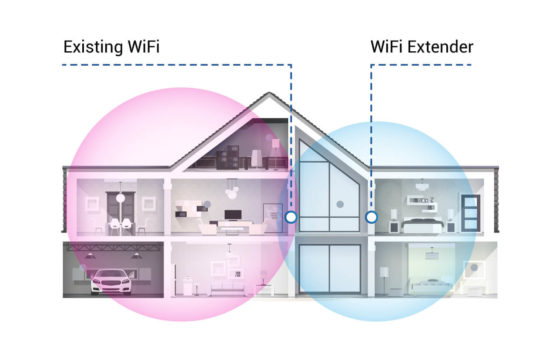
Don’t want to run new wires for your network? Check out the information on phoneline and wireless networking products.
Before your computers can share your Internet connection, they need to be able to share with each other! This means that you’ll have to connect them together to form a LAN. If you already have an Ethernet-based LAN, then you can go on to the next page. If you don’t, or aren’t sure, then read on.
What’s a LAN?
A LAN, or Local Area Network is a group of two or more computers, physically close together (usually in the same building), that are linked to each other. LANs can contain devices other than computers, for example, printers, print servers, storage devices, etc. If you’re new to networking, I recommend you read this CNET article. It includes a handy interactive Home LAN Decision Maker, that can generate a shopping list of components for your network.
Check your modem
If you’re going to share your connection, you need the fastest connection possible. So if you don’t already have one, go get a modem capable of supporting a speed of 56,000 bits per second (56kbps). If you try to share a connection with anything slower, you’re really not going to enjoy the results.
It used to be (way back a few years ago…) that there were two standards (K56flex and X2) for 56K connections, but no more. All 56K modems now sold support the V90 standard or can be upgraded to it with a free download from the manufacturers web site. Virtually all ISPs have switched over to this new standard, but check with your ISP before you buy your modem, just in case they haven’t switched yet!
Remember, all you need is one modem!
Choose Your Cabling Type
You first need to determine the type of cabling to use for your network. This page from the CNET article gives a short summary of the two types of cabling.
PLEASE NOTE that the text is a little misleading when it says “Thin Ethernet runs at only 10 Mbps, much slower than UTP.”
The more accurate statement is that Thin Ethernet (10base2) can run at a maximum of 10Mbps, while the proper grade of UTP cable can support a maximum of 100Mbps operation. You’ll need a 100MBps hub and 100Mbps Network Interface Cards in order to take advantage of the higher speed, both of which cost more than 10Mbps components. In most cases, a 10Mbps (10baseT) network will work just fine.
If you’d like more information on the Pros and Cons of the various kinds of Ethernet cabling. This Linksys article is also helpful in deciding what type of cabling to use. You should also take into account the maximum allowable cable lengths in deciding which type of cabling to use:
| Cable Type | Max. Length |
| 10Base2 (Thinnet) | 600ft |
| 10BaseT (UTP Category 5) | 328ft |
Other Options
As of late 1998 and early 1999, other options for wiring your network have appeared in the form of wireless and phone-line networking products. These products tend to be more expensive than the “normal” Ethernet options and run more slowly. But they have the advantage of not requiring you to run special cable for your network. Depending on the setup of your home or office, this can be a great advantage.
If you have a simple two computer setup, with the computers either in the same room or very close to each other, you can consider using Windows Direct Cable Connection (DCC) feature. This allows you to use the serial or parallel ports of your computers to network them. For more information on how to set this up, on J. Helmig’s site provides all you need to know.
A variation on DCC has appeared in the form of a product that uses the Universal Serial Bus (USB) ports of your computer to network them together. The Anchor Chips ezLink kit can be used if your two computers have USB ports. You should probably only try this option if your computer is also running Win98, which has good USB support.
Finally, if you have WIN98 and USB ports on your machine, you can try one of the USB-Ethernet adapters that are available. (Unfortunately, there aren’t any of these products with MacOS drivers available.) Check this page for more info or this page for a review of the Linksys product.
Is “Thin Net” for you?
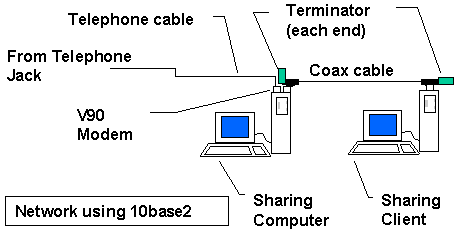
If you have only a few machines and want to spend the minimum amount of money, you can use 10base2 or “thinnet” or coaxial cabling to connect your computers as shown in the diagram below. This method is less expensive than using the 10baseT method (which I’ll talk about next), and contrary to some things you may read on the net, runs at the same speed as 10baseT.
Here’s a cabling diagram of a simple network for sharing your Internet connection via dial-up modem, if you want to use 10base2 cabling. Only two computers are shown, but, of course, you can add more computers by removing a terminator, connecting another computer as shown below, and re-installing the terminator on the last computer in the chain
10BaseT for Me!
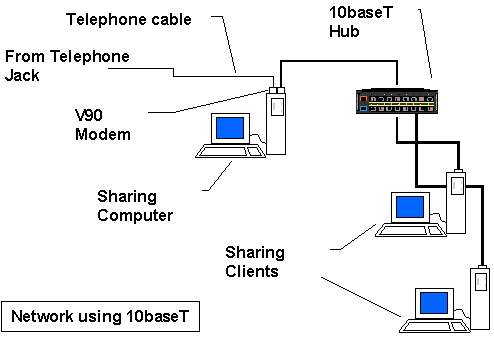
If you have more than one sharing Client computer, or are planning to expand your network later, or have to run your cables in areas where they might be damaged or tampered with, then you should use 10baseT cabling to set up your network, as shown in the next diagram below.
Networking equipment manufacturers have made setting up a network easier by bundling NICs, cables, a hub and setup documentation into handy kits. This may be the way to go if you are setting up your first network, but please read this page on hubs before you buy one of these kits.
Note that you use a different kind of cable, called UTP (Unshielded Twisted Pair), for a 10baseT network. Although it may look like the cable that you use to connect your telephone to the wall, it’s not. So be sure to use the correct cable to build your network. This kind of network also doesn’t need terminators.
Here’s a cabling diagram of a simple network for sharing your cable modem, if you want to use 10baseT cabling.
NOTE: If you follow the diagram below, do not connect any cables into the hub’s “uplink” port. That connector is used to connect one hub to another, in case you need more ports. (To “cascade” or “daisy chain” hubs, you would connect the “uplink” port on one hub to a normal port on another hub, using a regular UTP cable.)
10BaseT…with a “twist”
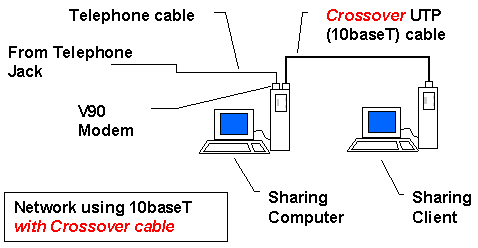
If you have only two computers in your network, you can get by without a hub, if you use a special kind of UTP cable called a “Crossover Cable”. You can purchase them at the same place that you buy normal 10baseT UTP cables, or make one.
This network configuration is shown in the diagram below.
Note that many more configurations of LANs are possible, including LANs that have both 10base2 and 10baseT sections (using hubs that suppport both standards, such as the Netgear EN104).
So you’ve selected your type of network wiring, and maybe even have things connected together. You now have to install and configure your LAN (Local Area Network) software.