
There’s a common problem that people encounter with the Xfinity modem that can be quite annoying. The dreaded blinking green light!! It starts blinking and it won’t stop!!! More than half of Comcast and Xfinity customers will experience this at least once a year, so it’s good that you found this guide, as there’s nothing worse than having to call up support and try and get someone else to fix it. You can just do it yourself with this guide!!
If you’re experiencing this issue, then don’t worry – there’s several possible fixes that I will go over in detail in this article. I’ll show you how to stop the green light from blinking on your Xfinity modem.
Skip to (How To Fix Real Quick)
What Does The Blinking Green Mean?
If your Xfinity router is blinking green, it’s trying to tell you something and usually, it’s not great news. That flashing green light means your gateway is struggling to maintain a stable internet connection.
In plain English: the modem’s talking to Xfinity’s network, but the conversation keeps dropping. This could happen for a few reasons. They are, loose coaxial cables, signal interference, a temporary service outage, or even an ongoing firmware update.
The good news? Blinking green isn’t as bad as a solid red. It’s a sign of intermittent connection, not a total failure. So before you panic, check your cable connections, reboot your modem, and run a quick service check through the Xfinity app.
If the light keeps flashing after a reboot, it’s time to call Xfinity support as there may be a line issue outside your home.
Main Reasons Why The Xfinity Modem Is Blinking Green
If your Xfinity modem keeps flashing green, it’s not random. The light’s trying to point you toward the problem. Here are the main culprits:
1. Loose or Damaged Cables
The most common cause. If the coax or Ethernet cable isn’t snug, the modem struggles to keep a stable signal. Even a slightly bent pin or frayed wire can trigger a blinking green light.
2. Service Outage
Sometimes, it’s not your setup, it’s Xfinity. Scheduled maintenance or a temporary outage in your area can cause your modem to lose sync. Check the Xfinity Status Center or app before tearing everything apart.
3. Firmware Update in Progress
A blinking green light can also mean the modem’s updating its internal software. During this time, your connection might flicker or drop. Give it 10–15 minutes to finish.
4. Network Congestion or Signal Interference
If too many devices are hogging bandwidth, or if you’ve got interference from nearby routers, the modem may struggle to maintain a steady link. Try relocating it away from walls, microwaves, or cordless phones.
5. Faulty Splitter or Connection Point
If you’re using a splitter to share your coax line with a TV box, that little piece of hardware could be weakening your signal. Replace it or connect the modem directly to the wall jack to test.
6. Hardware Malfunction
If nothing else works, your modem might be on its last legs. Overheating, aging components, or power supply issues can all cause unstable performance.
How To Fix (real quick) an Xfinity Router Blinking Green
A blinking green light isn’t the end of the world. Most of the time, you can fix it in a few minutes. Here’s how:
1. Check Your Cables
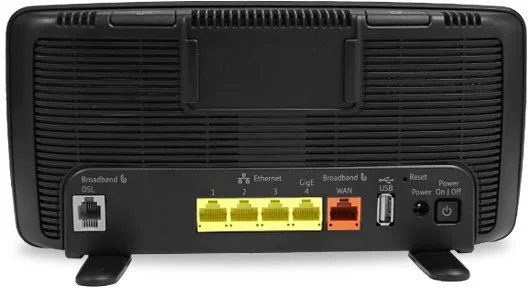
Unplug the coax and Ethernet cables, inspect them for damage, and plug them back in firmly. Loose or bent connectors are the top cause of signal drops.
2. Reboot the Modem
Pull the power cord from the back, wait 30 seconds, then plug it back in. This clears temporary glitches and forces a new connection with Xfinity’s network.
3. Use the Xfinity App
Open the Xfinity app, go to My Network, and run a connection check. It’ll tell you if there’s an outage or a network issue in your area.
4. Move the Modem
If your modem’s stuffed in a corner or behind the TV, move it somewhere open and elevated. This reduces interference and keeps airflow steady.
5. Skip the Splitter
If you’re using a coax splitter, disconnect it and plug the modem straight into the wall jack. Splitters can weaken your signal more than you think.
6. Factory Reset (Last Resort)
If nothing else works, press and hold the reset button on the back of your modem for about 30 seconds. Just know this will erase your custom settings.
If the blinking green light sticks around after all that, it’s likely a line issue or faulty hardware. That’s your cue to contact Xfinity support, they can run a remote test or schedule a technician visit.
When to Call Xfinity Support
If you’ve checked the cables, rebooted, and run through all the quick fixes but that green light keeps blinking, it’s time to bring in the pros.
Here’s when you should call Xfinity:
If the the light’s been blinking for more than 20 minutes after a reboot…call them.
If you’ve confirmed there’s no outage in your area…call them.
If you’ve tried a direct coax connection with no splitter, and it’s still unstable…call them.
If the modem feels unusually hot or randomly resets itself…call them.
When you contact support, they can run a remote line test, refresh your signal, or schedule a technician if there’s a wiring issue outside your home.
If your modem’s rented from Xfinity, they’ll replace it for free if it’s faulty. If it’s your own, it might be time to upgrade. Newer models handle congestion and firmware updates far better than older gateways.
I hope this guide has been helpful. Good luck!

)